Showing posts with label Website. Show all posts

Wednesday, September 21, 2011

How to Install Joomla with Free Hosting : Host-ed

Host-ed offer free hosting with lots of customization facility. Using Host-Ed you can install Joomla. Host-Ed has Zacky Tools Installer for this purpose.
First complete the registration process for free hosting with Host-Ed. See  Get Free Hosting : Host-Ad for details. Then go to you control panel. On Control panel home, on website manager you will found Zacky Tools Installer, this application enable us to install joomla. Click on it.
Zacky Tools Installer
From the next window, choose Joomla as your site builder Platfrom.
Site Builder Platfrom
Choose a joomla template and click on next button.

On next window, you will be given the opportunity to choose some extra plug in like Joomla WYSIWYG Content Editor : JCE - 1.5.7.6, Attachments - 2.1.2,JoomSlide - 1.41, Akeeba Backup - 3.1.5 etc,  you can skip these if you don't like.
Plug ins
Then on the next window configure your site domain.[See what is internet domain address ] On this provide your domain address as shown below. If you don't have a domain then you can have a free domain. See article Get Free Domain For Your Hosting for detail about how you can get a free domain.
Configure Domain
Select you destination path on the below section. Keep it blank if you want joomla to be installed in your domain root folder.
Joomla Installation Path
Also on the other section we have to provide Your website Title and Administrative credential. Fill them carefully.
Add website Title
Add Administrative credential
Go to the Next page. Now you will be ready to install joomla. Click on the button Install joomla.
Joomla Installation
On the next you see Joomla is installing in step by step procedure. It will take a while. And your joomla installation is complete.
Finalization
This will work as it worked with paid hosting. You can experiment with it as you want.

Get Free Hosting : Host-Ad

There are lots of hosting providers giving free hosting now a days. I tried some of them. But in most case I faced a problem. The problem is that they gives space but don't give you the authorization for installation, customizing web page or database. In most case you will be provided some pre-defined platform.

From that point of view Host-Ad is very good indeed.Though it gives you limited space but you can try lots of thing and experience how it looks like in real.

Host-Ed Logo
Go to http://host-ed.net and sign up in the the Free offer. In free offer you will get 250MB of Disk Space. One MySql Database with 10MB Space and 5GB of Monthly trafic.

Host-ed Off
Fill up the forms correctly providing all the information required. After finishing signup confirm it form your email address.


After confirmation, you can browse your Control Panel. Check it out.

Now we will See how can you install Joomla in it.

Saturday, September 17, 2011

Integrate Language Translation Facility in your Blog or Website

Though the majority of net user (about 65%) use English as their communication medium, But still almost half of the user uses in other different language. On the other hand, it's always advantageous to write blog or website in your own mother language, as you don't need to translate your feelings. Whatever language you use, you can make your blog accessible(understandable) to everybody else who share their feelings other than your language by translating your website or blog in their language.

Integrate translation facility to your website or blog, by this way user don't need to go anywhere else to translate your blog. They can read your blog or website simply in one click.


Add Google Translator in your Blog or website
To integrate Google translator in webpage or blog, go the site : http://translate.google.com/translate_tools, from here select what you want to translate, what is your blog or website language and code will generated automatically. Copy these code add in your blog or website.
Google Translator
You will see a drop down menu in your page. If anyone want to translate your blog or webpage they just need to select the language from the list.
Paste them in the place where you want to show this. This will look like as follow:
It is more easy for blogger user. They add Google translator in their blog as a widget. Just click on "Add to blogger" button and provide your blog address. If you are logged in then you need not to provide address, just provide permission. Google translator will added as a widget.
The Translated can be bookmarked.

Add Babel Fish Translator in your Blog or website
Other then Google there are some other translator that also can be integrated with your Blog or website. Yahoo!Babel fish is one of them. To add Babel fish in your site Go the the site : http://babelfish.yahoo.com/free_trans_service and select they style and from drop down menu select your webpage or blog language as from. Click on the "I want one" button. Code will be generated for your site. Add this code in webpage.
Babel Fish Translator

Show Cricket Live Scoreboard on Your Blog or Website

You can add cricket Live Scoreboard on your blog or website, So that people can watch score without going in another site.
Scoreboard
First, Go to the address: www.vcricket.com. At the end of this site you will see a option "Put our scorecard on your website Free!"Click on it and you will see a form. Fill it up with your domain name, Select the type of scoreboard you want to show, Specify language, you can also specify specific team. Then Click on the "Generate the Code".

The code will be generated. Now copy this code and paste in your blog or website.

In case of website you can easily put this code. But if you want to put this code in blogspot then, you can do it in a number of way. The easiest way is to copy the code and from design select add a gadget then select HTML/Javascript and paste the code. Now save it and watch.
Addin Scoreboard in Blogspot

Wednesday, September 14, 2011

What is Internet Domain Address?

Domain names can represent numbers of IP addresses, and well known use of domain names is to identify specific web address. Domain names are used in URLs for identifying web addresses. On the Internet, Domain is the part of each network Address. It consists of web site, email addresses and also FTP, IRC, SSH etc internet protocol address.

For an example, http://www.wikipedia.org/wiki/Main_Page.html is web url and here widipedia is the domain and wiki is a directory in that domain and Main_Page is a file in that directory. So They all share the same domain name.

Domain names are categorized by levels which we see at the end of the domain as suffix. We are familiar with Top level domains (TLD) such as .com, .org, .edu etc. They are lots of Top level domains, also each country got one by its name such as .ca for canada, .th for thailand etc.

Internet Corporation For Assigned Names and Numbers (ICANN) is the governing body for domain names, it is a nonprofitable organization.

Our current Internet system is based on IP address hence these domain names needs to be translated into IP addresses, hence each web server willl need a Domain Name System (DNS) for translating them.

To obtain a top level domain name you may need to purchase from a domain registrar.

Tuesday, September 6, 2011

Download Torrent Files with your Download manager

There are lots of torrent site you will find on the web. Torrent client is needed to download from this sites. Torrent kind of sharing. But there is a way by which you can download from this torrent sites without torrent client but just with your download manager.

First go to the www.torrific.com web address. Sign up and then log in. Then go on your torrent site where you already select a application for download, don't start downloading. Copy the web address. And paste this address into your torrific.com account address box beside get button and press the get button.
Copy Torrent URL
Paste in torrific account
Then you see the respective sites torrent download page within your torrific account. Now Click on the link where you see dowload this torrent or magnetic link, don't click on the direct download. If you do this properly then you see a button showing  initiate bittorrent transmission on the following page. Click on it. Then you will get a notification whether this download is available. If not available when it will be available. After getting the link you can download it with any normal download manager.
download torrent files

Monday, September 5, 2011

Static website VS Content Mangement System (CMS)

What is Static website
We can build website with Dreamweaver, Forntpage or GoLive. With this tools normally we create website that is called static website. Static web site are quite simple. When we type some address of static website in web browser then a request is sent to the server about the page from our PC or client computer. The server is then locate the page and send a copy of the page with it associates like CSS, flash files, java scripts etc back to our computer. The client then displays the page along with the other associates. This system is static as the page contains the fixed content. The server simply picks the right page from the right location and send it. No processing is required on that page. You create web pages in your computer and send it to server via FTP and the server stores it. When any request sent it then sent a copy back to the client computer.This what a static web site.
Static Web Page

Content Management System : CMS
A content management system or CMS is very different from static web site. A content management system or CMS is a web application software that runs on web server instead on the client. All CMS software generally functions in the same kind of way : the server software, the middleware software and the database may vary but the functionality is pretty much the same.

Now when we type a address of website that is maintained with CMS then a request is sent to the web server. The web server looks for the page and find out that it is written in PHP, a programming language. The  web server knows it can't sent this page to the client. Some processing must be done. So the webserver send request to PHP. The PHP looks for the document and determine whether something needs to be pulled from the database and then process. PHP functions here as middleware. PHP handles the conversation between server and the database. The server and the database can't talk to each other directly. They need translator. There are other programming language thats are also use like ASP, .NET, java etc.
CMS processing

The database receives requests from PHP via database query. The demanded information copied and send back to PHP. PHP arranges the database information as specified in code. The actual PHP codes are replaced with normal html code after processing complete. So after processing it only contains the html codes with its associate information which is then send back to the client computer

Get Free Hosting with Freehostia

For making a website you need to do the things as follow:

First, you need to have a domain, Second, you need have hosting space and Last,make the setup.

The basic two way for doing this is paid and free. Of course you won't get every opportunity in free hosting and domains but you don't have to give money that's what makes the difference. They are lots of these sites who are providing free domains and hosting. Now I will show a way by using one of them. You can do the same thing with others.

Hosting Registration: How to have free web hosting.
Now things that we will need next is hosting space where web file will be. It is more like hard disk in our computer. There are also lots of sites providing these free hosting features. You can take any one of them. Now we will see how can we do it with Freehostia. Click on following link to go the freehostia http://www.freehostia.com/. It has some package with some distinct feature. Only its chocolate package is free and we are going to use it. One big problem in freehostia is that now a day it does not add free domains. So if you don't have free have top domin like com, org you are not likely to have free hosting.
Fig:Chocolate Offer
Now click on the "Take a bite" button for singing up.You see the sign up form. Read carefully and fill the required field and make the registration complete. You see confirmation message it you successfully complete the procedures.
Now log in you control panel with you user name and password.

Finalizing: Setup
It the last step in which you combine both your hosting and domain with bond. Now go to the co.cc or the website from where you have your domain registration. If it is Co.CC then it is very easy. Click on the setup button. Then you see the Manage domain option. Again click on the setup button. [Here I give the example from Co.CC but it is not anymore supported in Freehostia, but lots of other hosting site support it]
Setup with CO.CC

Now you will see some options like Name server, zone record, url forwarding etc. Click on Name Server (DNS) Radio button and you see two option Name Server1 and 2. Check your email and you see you already got two name dns server name. Put those two dns name on the boxes.And click on the setup button. 
Click ok on the next page. Now you are almost finished. Now log on your freehostia site with your username and password that are provided by freehostia via email. You see your control pane like as follow:
Fig: Your Freehostia Control Panel
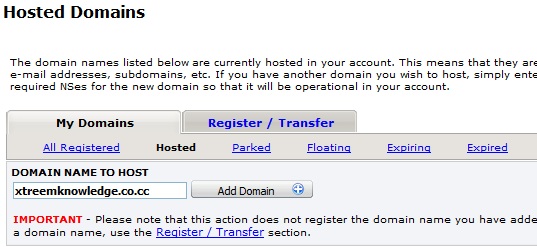
Now click on the Hosted Domain and in my domain area write your domain name and click on the Add domain button.
Fig: Add your domain
Your work is done. You its up to you how you manage your CPanel. And how you arrange your website.

Sunday, September 4, 2011

Searching Easily From Internet

Searching over internet is extremely necessary in our day by day life. There are millions of website for millions of subject. And sometimes we need to know something from them. Then we use different search engines for searching our desired content, but it happens that a lot searching needed to find what we need. Most of the time they drive us towards something unnecessary. It is because all search engine follow some rules for , and if we search using these syntax then searching will be a please idea. 

Google itself has number of operator for searching. We will see some of the important syntax which we will need in our daily life.

The most common Syntax for GOOGLE is as follow
keyword Opeartor:Parameter
Things to remember: No space after colon and Search engines are case sensitive.

site
This operator is useful for searching something from a specific web site and its subdomains. For an example if you want to search about football from wikipedia , here our key word is football and operator site and  parameter is the website. Place your search like as follow
football site:en.wikipedia.org
Now if you want search about football from all org domain sites then place your search like as follow
football site:org
See how dramatically your searching changes by these searching operator.


filetype
This operator is very helpful for finding specific formatted file. If you are looking for some types of specific formatted file then you can use this operator that will make your searching very simple.

Suppose you want to search about a power point presentation file about human traffic. And we know power point presentation files formats are ppt or pptx. If you want ppt formatted file then place your search as follow
human traffic filetype:ppt

inurl
This operator is very useful for searching specific word in url or web address. Suppose you want to find a website which contains the word face then use this inurl operator for you searching as it will fetch all the web address that contain face as a part of address. Then search should be placed as follow
inurl:face
If you want to search more than one word in web address then you can use the allinurl operator.
allinurl:online movie

intitle
If you want to search about specific keyword in web page title then you can use this operator. intitle operator search the specific keyword in web pages title and fetch it for you.
intitle:download
If you want to search more than one keyword in title then use the allintitle operator.
allintitle:download movie

define
If you want to know the meaning of some word then this operator is very helpful. This will fetch all the description about your keyword this stored in various site.
define:life
define operator cannot be used as combine with other keyword.

OR
This operator can be to combine multiple search. For an example you want search the all pdf and doc files about human traffic then you can place your search as follow
human traffic filetype:doc OR filetype:doc

Also all other operators can also be used together for compact searching.

Sunday, August 28, 2011

Get Free Domain For Your hosting

For making a website you need to do the things as follow:

First, you need to have a domain, Second, you need have hosting space and Last,make the setup.

The basic two way for doing this is paid and free. Of course you won't get every opportunity in free hosting and domains but you don't have to give money that's what makes the difference. They are lots of these sites who are providing free domains and hosting. Now I will show a way by using one of them. You can do the same thing with others.

Domain Registration: How to create a free domain.
First of all you have to register for domain name. Choose your name carefully as it will be the most important identity of your web site. It can be your institutions name or some theme or some persons name etc. 
Also your selected domain need to be available mean it will not be eligible if some one else already choose it. Now let see how you can register a free domain. Click on the following link http://www.co.cc/ and create a free account here.
Fig: www.co.cc Website

After logging in on the home page hit on the Getting a Domain Name button. On the blank box see whether you chosen name is available or used.
Fig:Create your own domain
If you desired domain name is available then click on "Continue to registration" button. If you already registered then you will see the confirmation message that your domain is successfully created.
Fig: Confirmation Message
And your domain processing is ended here but still the whole process not completed yet. As after getting the hosting you have to add the dns server address. You can do that easily. After getting hosting you will get two dns server address. Open your co.cc account and setup your domain with this two dns address.
Add DNS Server Address
Sometimes it may take upto 48 hours before your domain activated. Also complete the process in less then 48 hours because maximum free domain sites erase domain if not completed within this time.

Make you own social networking site

You can very easily make your own social site like facebook, twiter etc. No, you won't get everything. But you can do the following things.

* Live Status
* Music Sharing
* Video Sharing
* Picture Sharing
* Wall Post 
* Events
* Blog     etc.

You will also have the admin panel maximum authority.
Now Let see how can we do it.

From the following link download the zip file of the script. Now unzip it and directly upload it to your in your hosting. Now browse the following formatted address. 
Format  :    www.yourwebsiteaddress.com/instal.php

And you will see a page as shown below
Fig: Fill the information
Fill the boxes with correct information and click on the "I Agree To this License Agreement Begin Install" button and you will see the the installation will be started and you will see something like as follow
Fig: Installation window

Now follow the instruction and delete the install.php file and your site making will be finished successfully. Now you can enter in your admin panel with your admin email and password and can arrange your site with your choice.